
Having created our trip tickets, we are now ready to receive loads in WeighWiz and synchronize them to LIMS. For the purposes of this tutorial, it is assumed that two way synchronization is already set up between LIMS and WeighWiz and the synchronization jobs are running. Therefore, data you generated in LIMS (e.g. sources, contracts, trip tickets, etc.) should be available in WeighWiz and loads you create in WeighWiz will then show up in LIMS. It is further assumed that WeighWiz is configured accordingly for you to receive LOG loads with the question set and work flow needed for you to successfully complete this exercise. Please contact your LIMS and WeighWiz administrators and/or 3LOG training facilitator if you find that this is not the case.
Launch WeighWiz by double clicking on the shortcut on your desktop or by double clicking on the WeighWiz.exe file in your WeighWiz folder, as shown below:
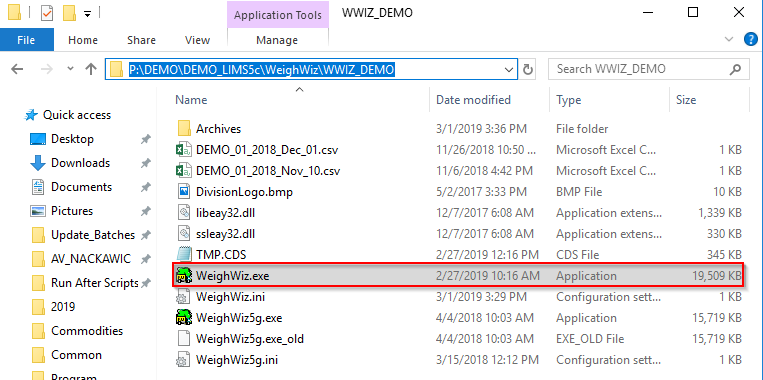
(Be sure to start WeighWiz.exe and not WeighWiz5g.exe as we are now transitioning to WeighWiz 6). Observe how WeighWiz 6 no longer uses a version number in the file name. When WeighWiz starts, you may see a start screen similar to the screenshot below. (The exact appearance will depend based on how your administrator configured your system).
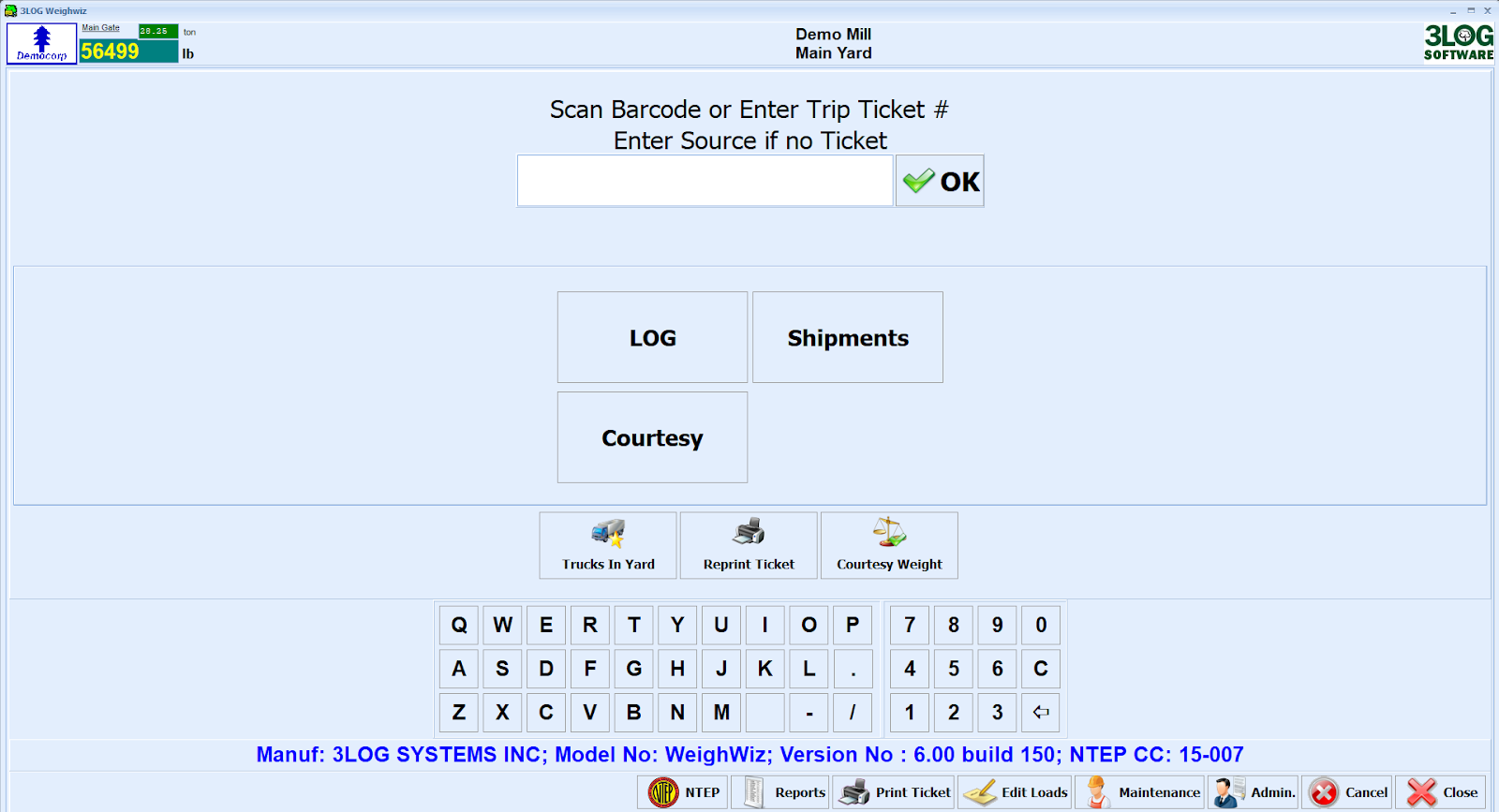
WeighWiz should be running in test mode so you are able to edit weights on the top left hand corner. Please advise your WeighWiz administrator or 3LOG training facilitator if that is not the case.
In the example above, you have the option of initiating a new load by typing or scanning a ticket number and clicking OK or using the LOG commodity button. If using the LOG commodity button, you'll need to specify whether the load is ARRIVING/LEAVING and/or LOADED/EMPTY in subsequent screens. You will then be presented with a screen that lets you weigh in using different options such as trip ticket, source, contract, etc. as shown below:

You are now ready to begin weighing in a load. To begin doing so, enter a gross weight in the scale indicator on the top left hand corner. Then enter ACME-01 in the trip ticket list and click the Next button.
Note: If your ticket is not found, it may not have synchornized over from LIMS or there is some other setup or data issue which needs to be investigated. Please contact your WeighWiz administrator or 3LOG training facilitator if that is the case.
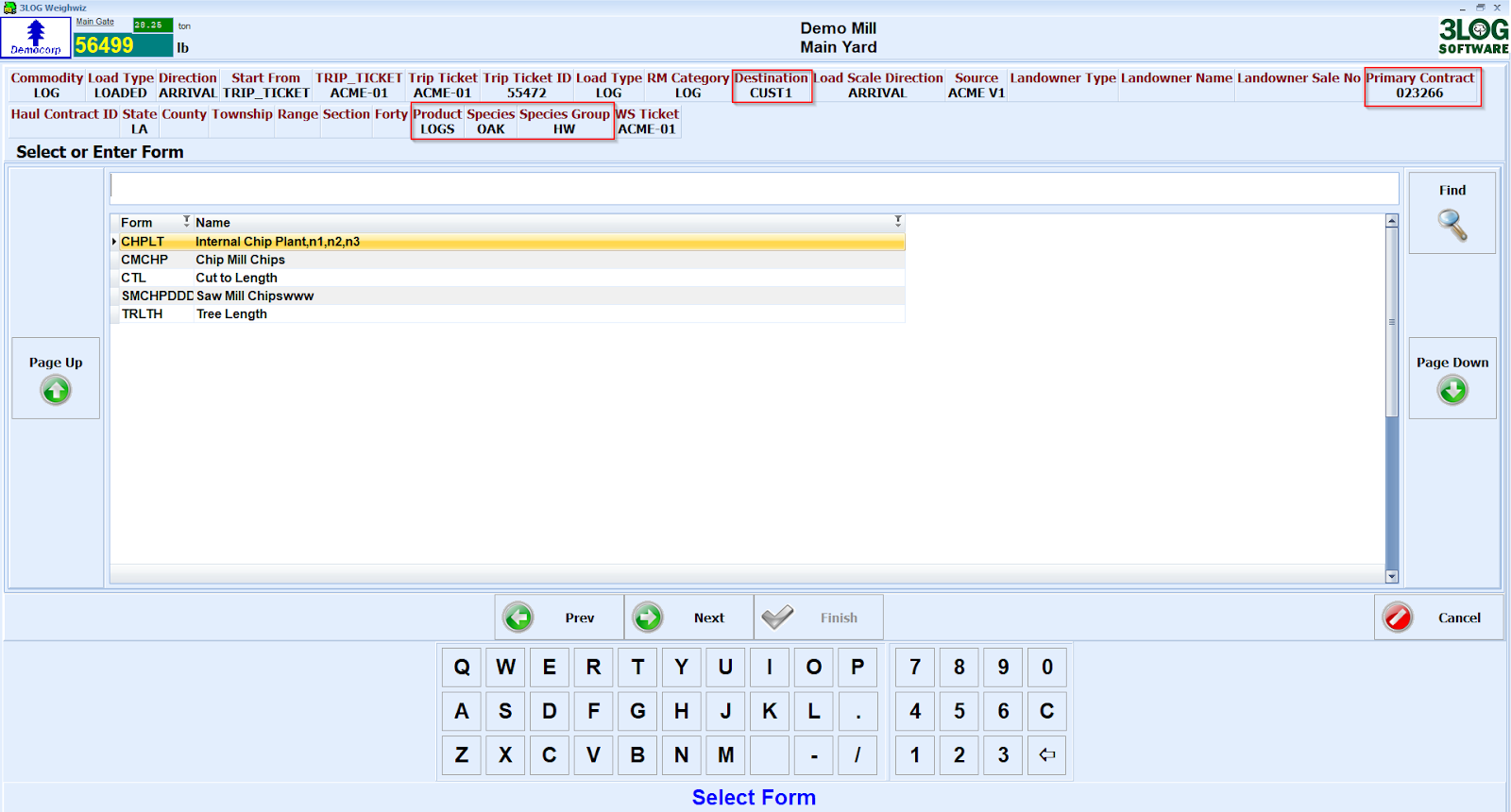
You will now be presented with a series of questions depending on how WeighWiz was configured. As you progress, observe how many of the fields are automatically populated based on how you configured your trip ticket and contract, particularly fields like Destination, Product, Species, etc. Below is a sample screenshot of the Form question which appears during the wizard:
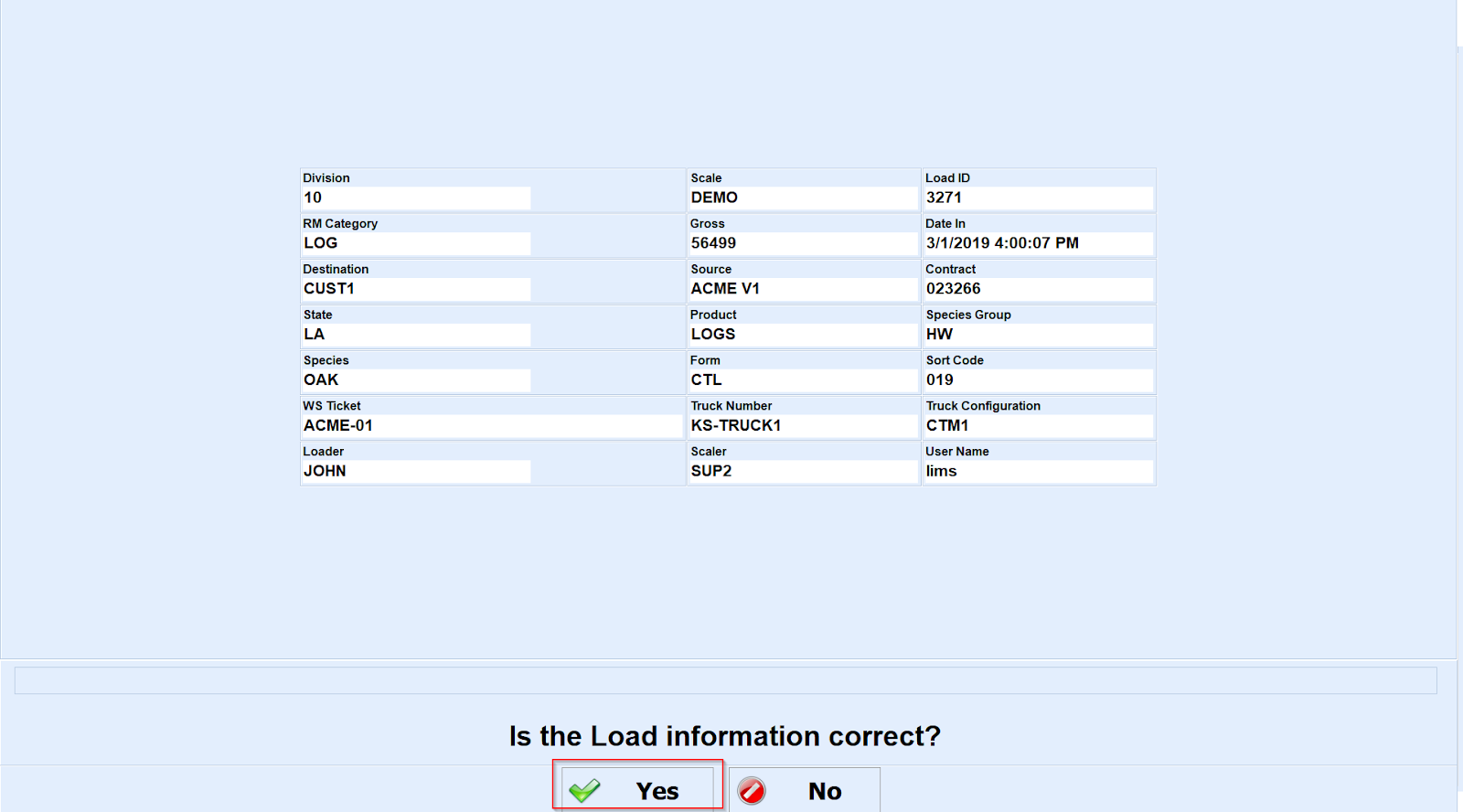
Continue stepping through the wizard until you reach the confirmation screen. Then click the Yes button if the information displayed is all correct. This will save your load and complete the weigh in process. Otherwise, you can click No to go back and correct any errors.
You can now weigh out your load by typing in a tare weight in the top left hand corner and entering/scanning your ticket number on the main screen and clicking OK:
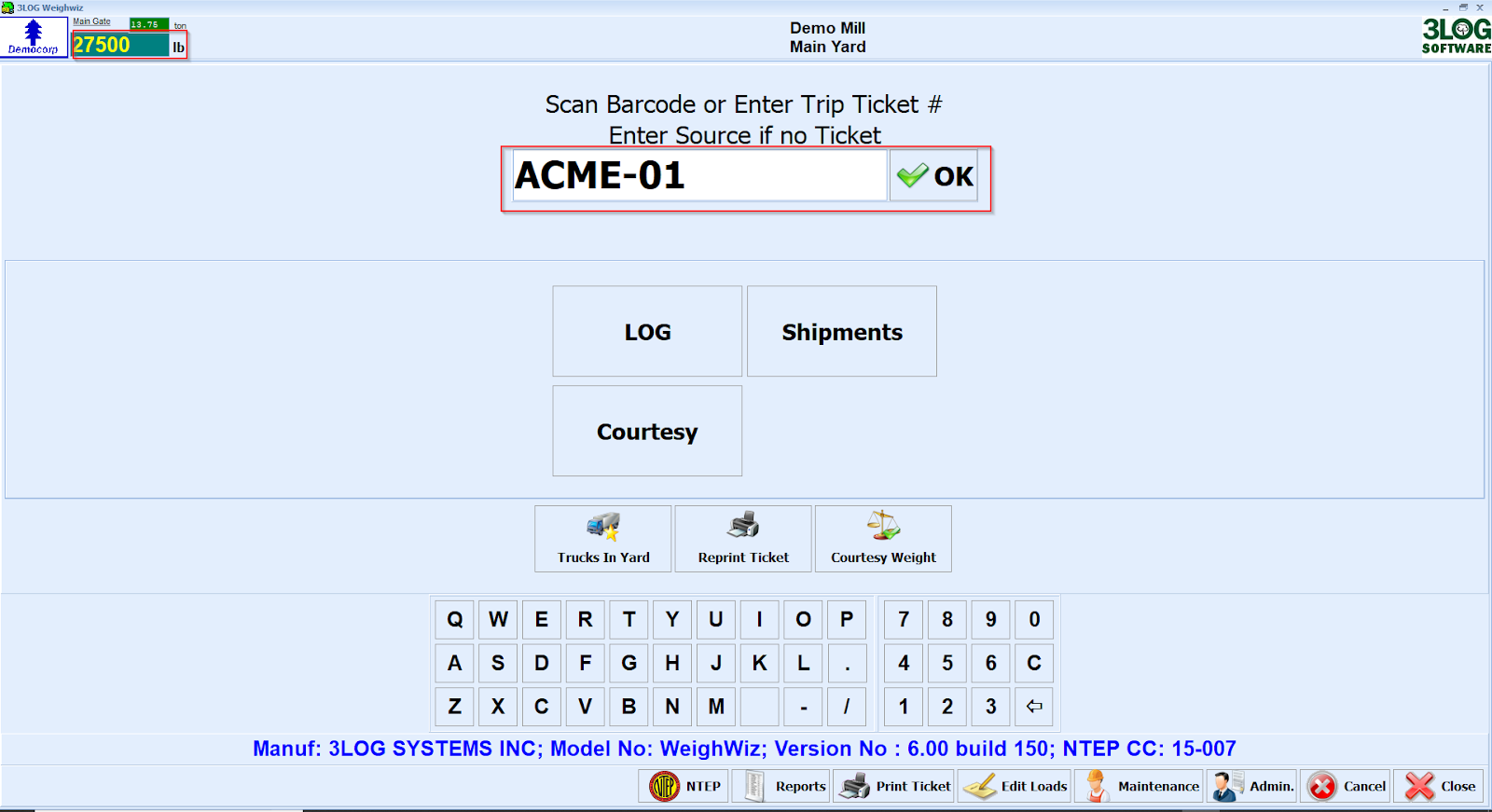
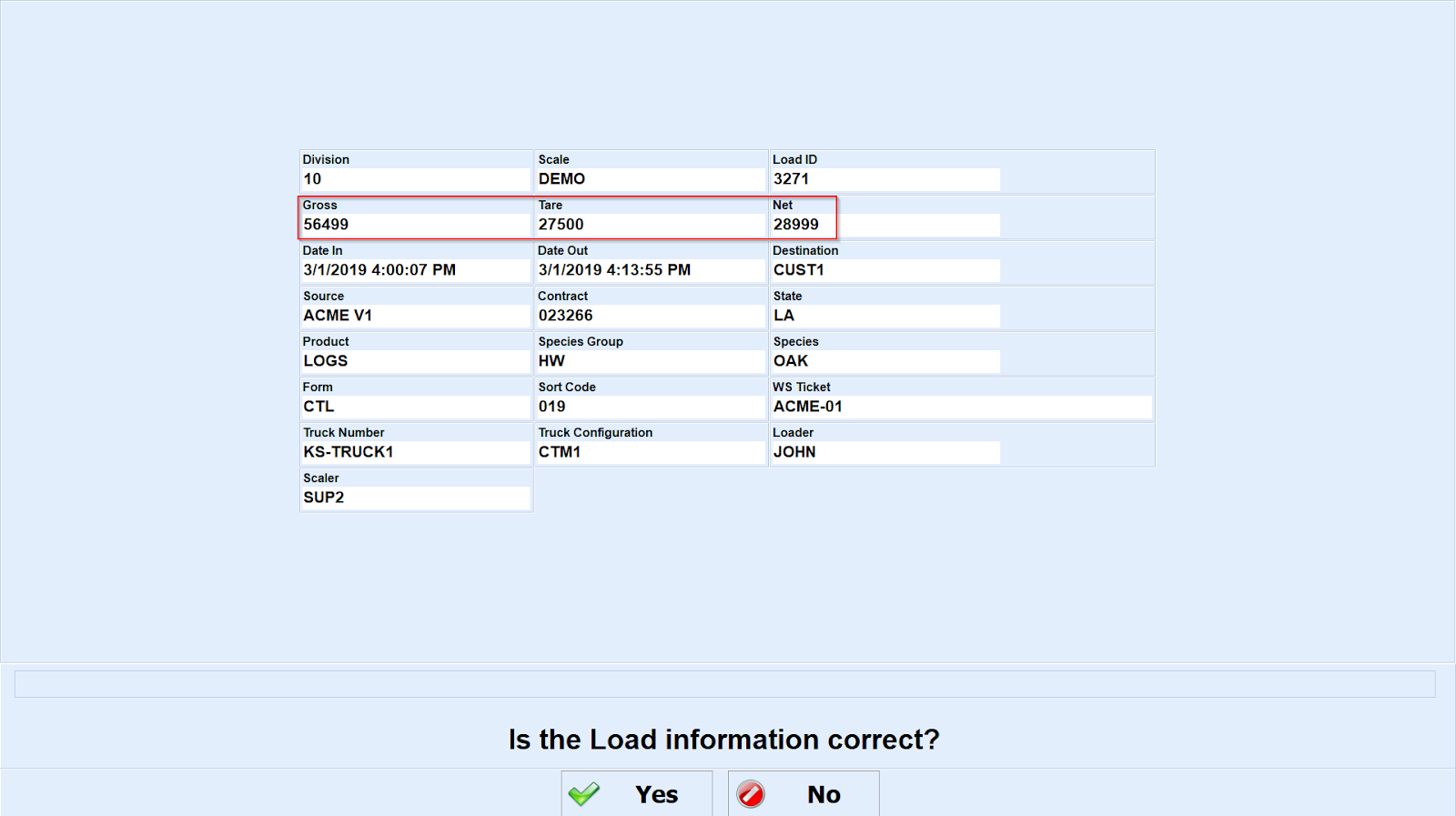
Answer any other questions that appear during the weigh out process. Once on the confirmation screen, confirm the information is all correct and then click the Yes button. You now have a completed load with a gross, tare, and net weight that will be synchronized to LIMS:
Process two more loads in WeighWiz using the ACME-02 and ACME-03 tickets you created earlier. Then wait a few minutes to allow your loads to synchronize to LIMS.