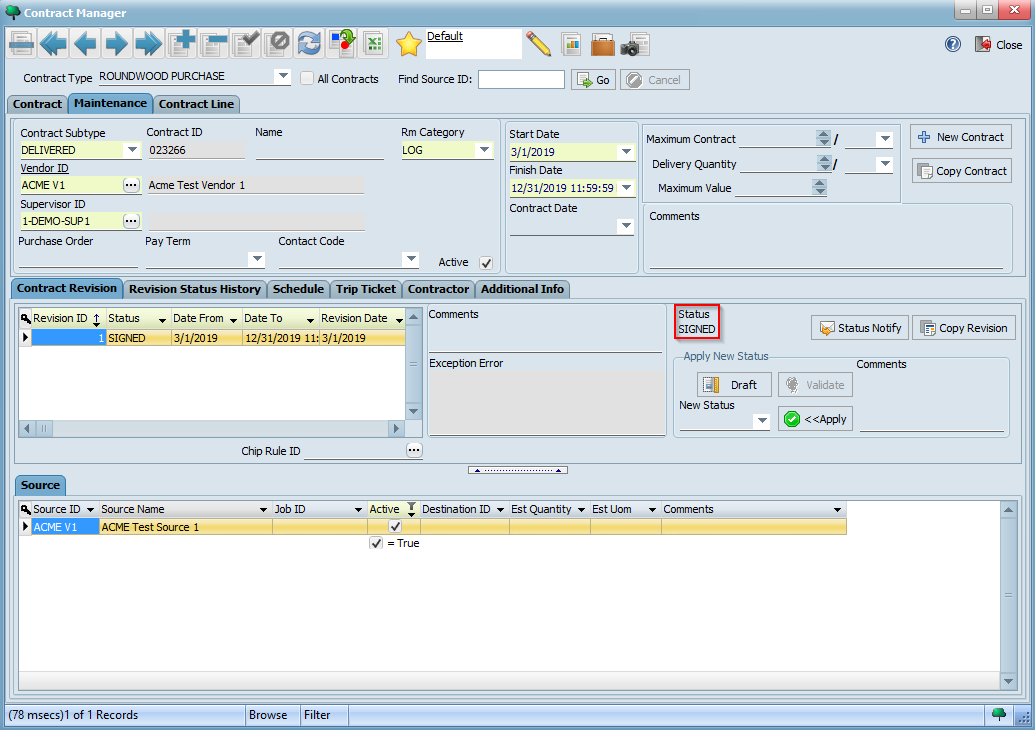
To begin creating a contract, select ROUNDWOOD PURCHASE as the contract type and click on the New Contract button:
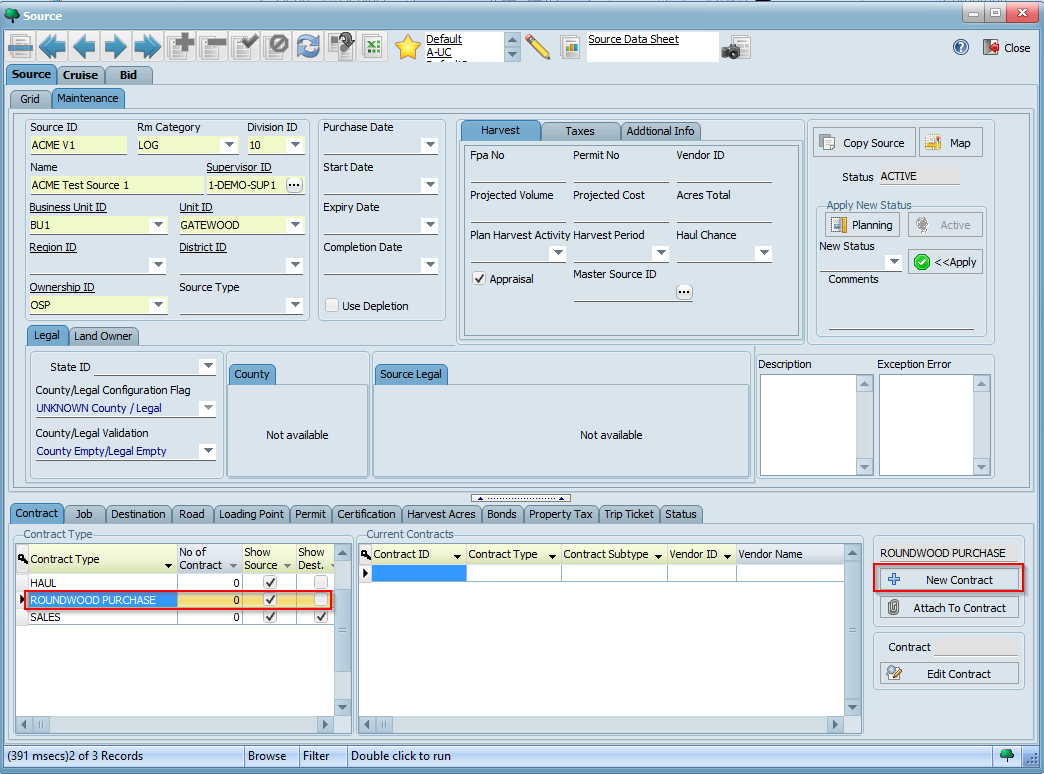
This will now open a window where you can configure different parameters for your contract:
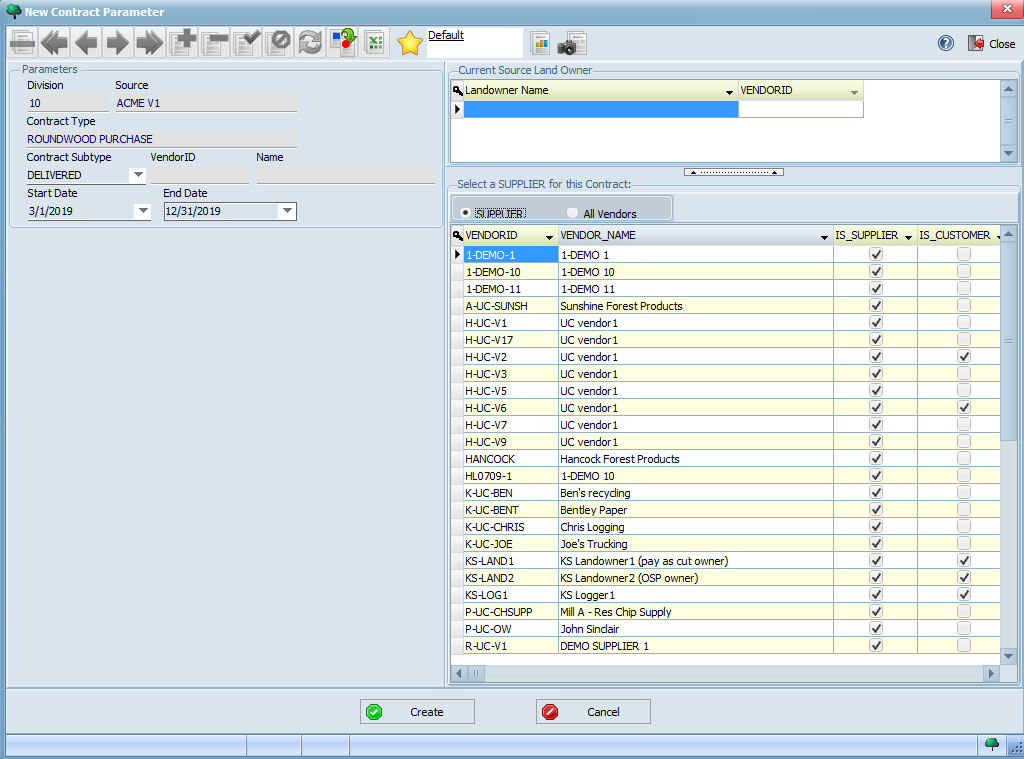
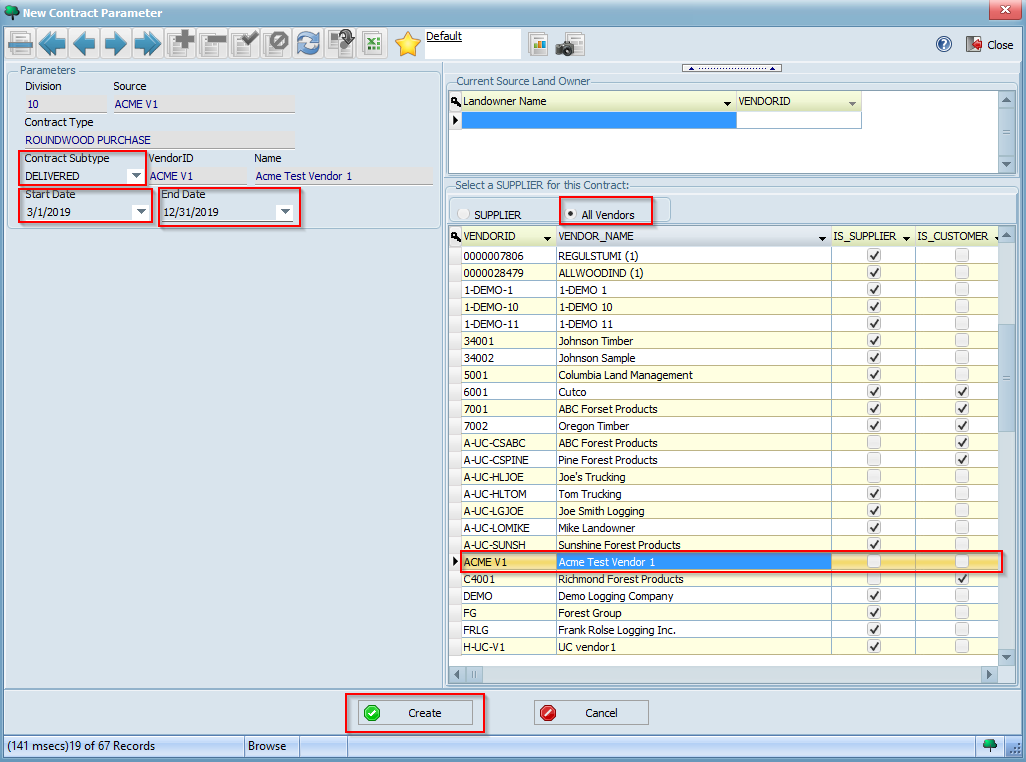
Fill in the different contract parameters with the values indicated below:
Your completed form should look similar to the following. Click the Create button to create your new contract:
You should now see a message saying your contract was created with the contract number:
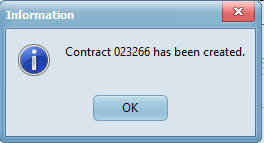
Click OK. You will now be redirected to the Contract Manager screen with your contract highlighted. Click on the Maintenance tab to review its details:
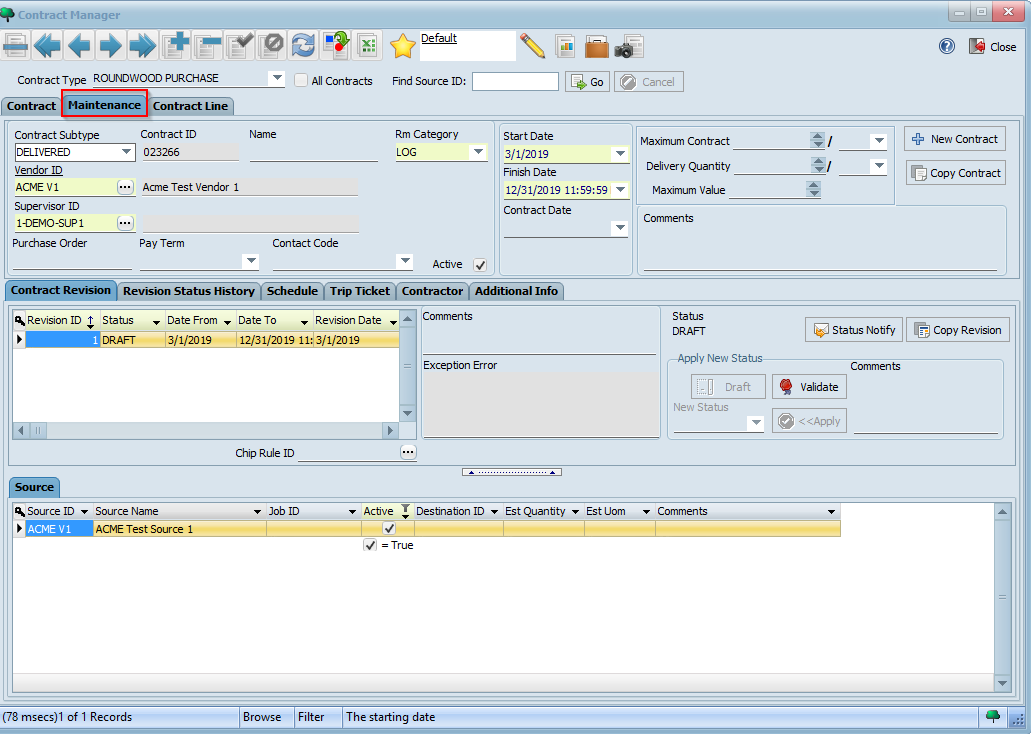
This screen essentially contains the contract header information. You may choose to add or update any information here if you wish. Then, click on the Contract Line tab:
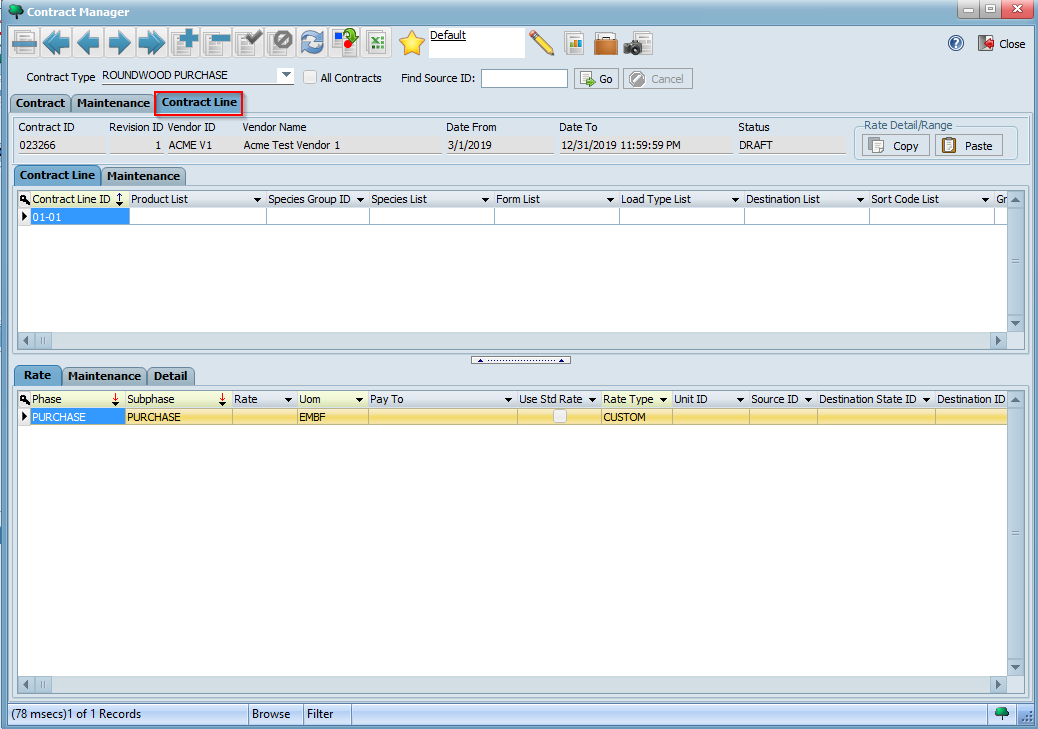
This screen allows you to enter more detailed contract line and rate information based on products received as part of this contract. Observe how the first contract line is automatically created by default. You will typically create additional contract lines for each product you will receive. For each contract line, you can define one or more contract rates based on a combination of different criteria.
Click on the Maintenance tab for Contract Line to view its details:
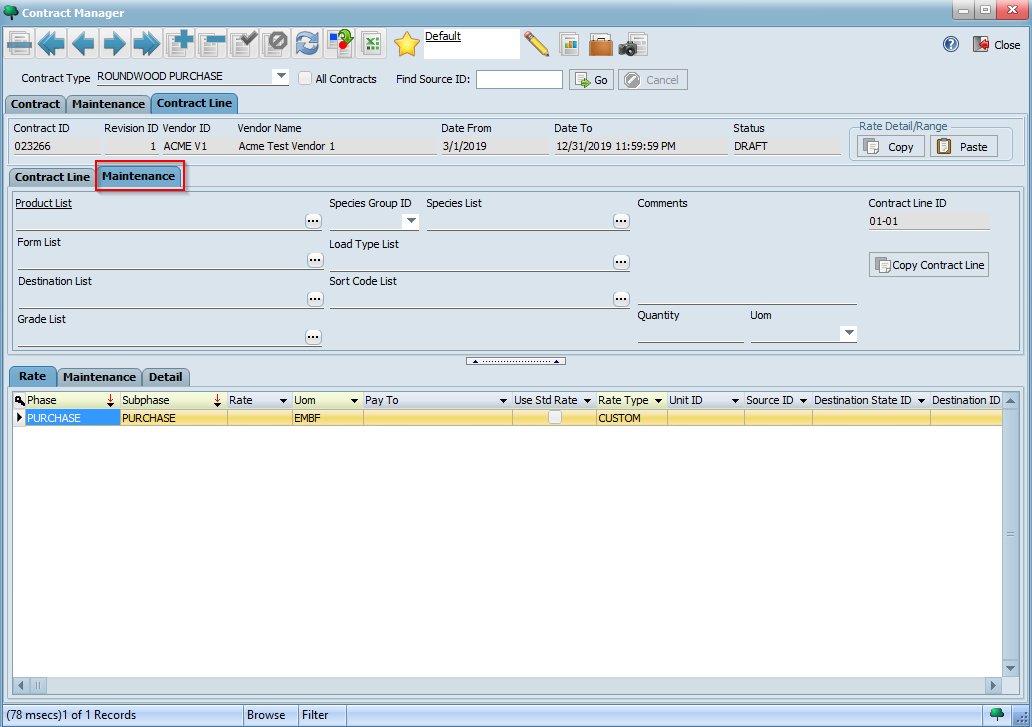
Next, select values for Product List, Species Group ID, Species List, and Destination List as appropriate and click the button:

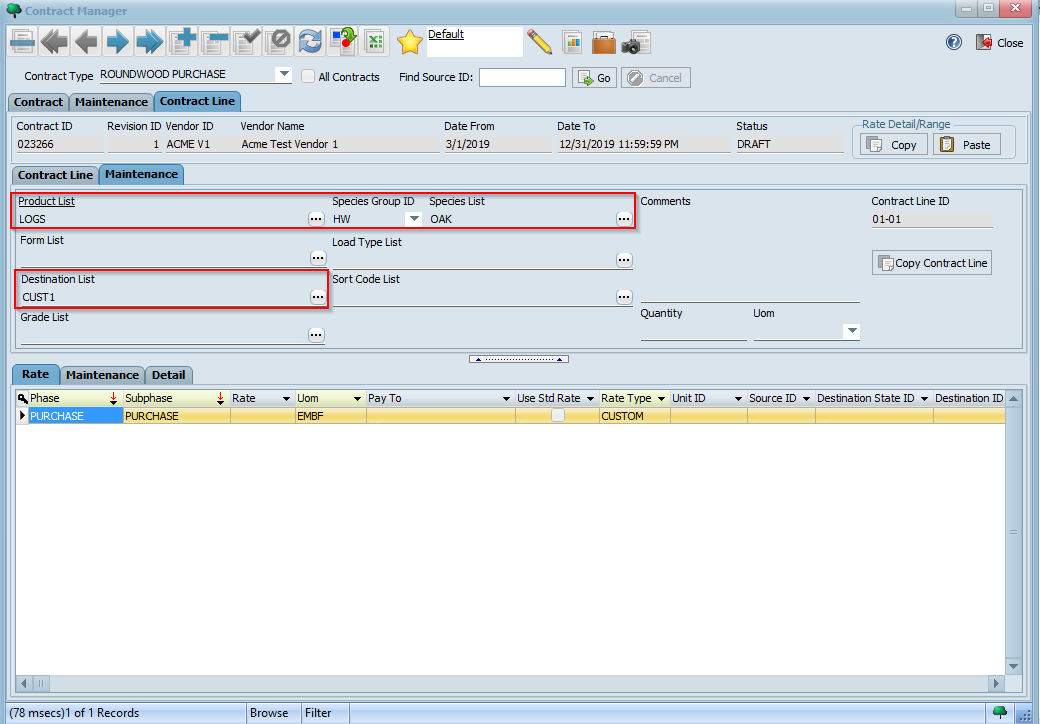
Make a note of the values you select here as we will later receive loads in WeighWiz that correspond to these. (We can then see how the corresponding rates are applied to loads synchronized to LIMS).
We will now enter a rate for our contract line item. To do so, click on the Maintenance tab for Contract Rate to view its details. Then specify a rate by entering values for Rate and UOM. In the example below, we are defining a rate of $25.00 per TON for the contract line we created:
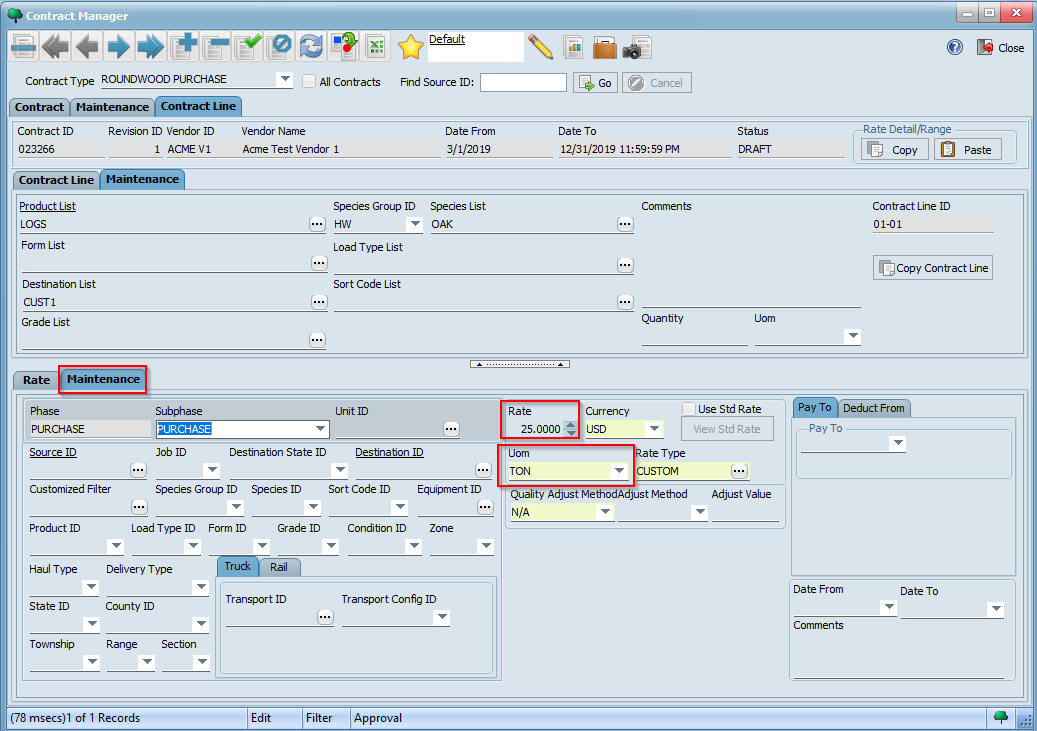
Click the button to save your contract rate.

Before our contract is ready for use, we need to validate and sign it. To do so, click on the Maintenance tab at the contract level and then click on the Validate button under Apply New Status:
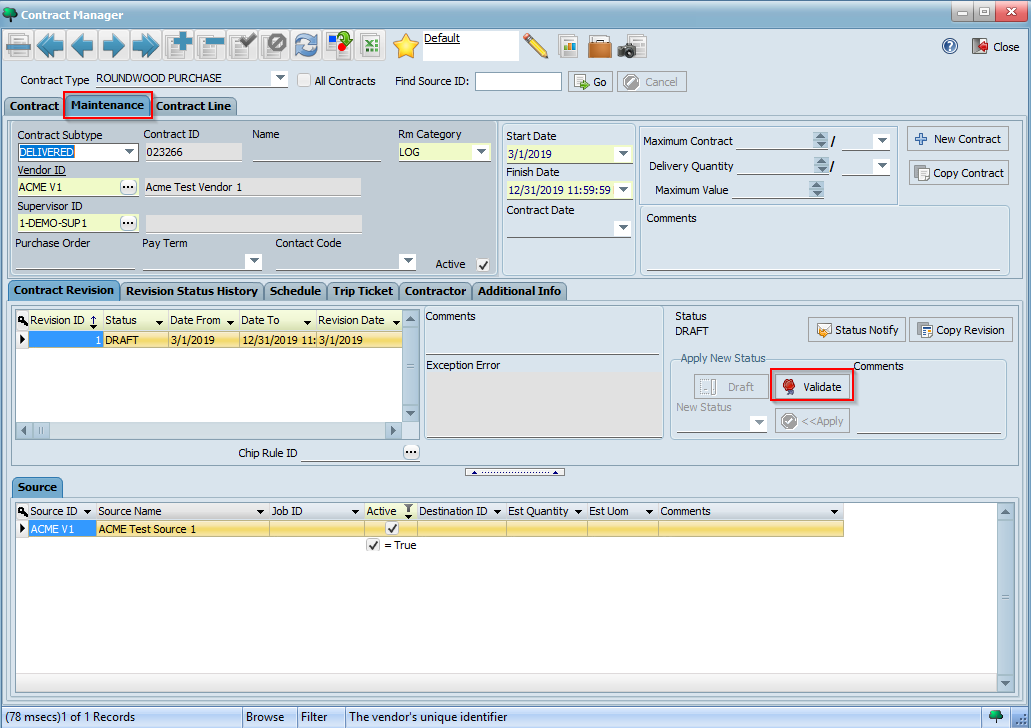
The contract now goes into PREPARED status. Using the New Status drop down list, select APPROVED and then click the Apply button:
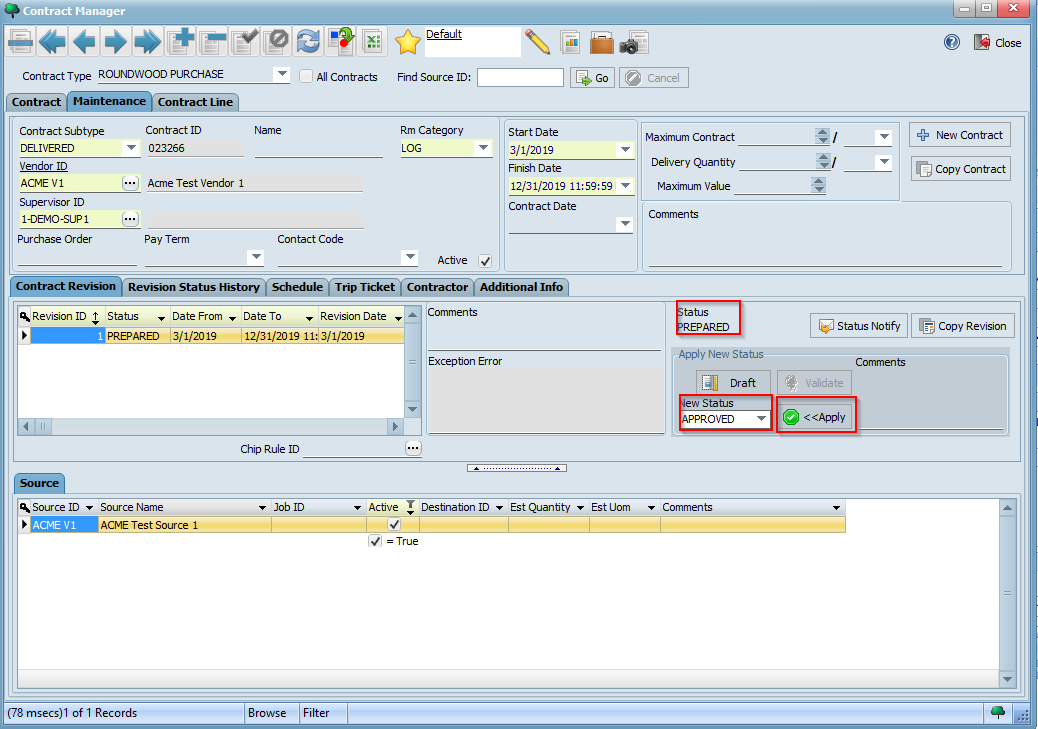
The contract now goes into APPROVED status. Finally, select SIGNED from the New Status drop down list and click the Apply button again. The contract is now signed, active, and ready for use: