
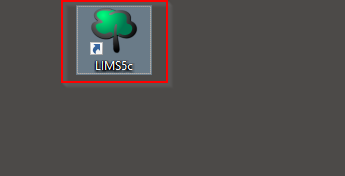
The exact method of logging in to LIMS varies from company to company. LIMS supports both SQL and Windows based authentication. If your company uses Windows authentication, you will be logged into LIMS using your Active Directory (AD) account and will not be required to enter an additional set of credentials. If using SQL based authentication, you will typically be required to enter a username and password. To launch LIMS, double click on the shortcut or executable on your desktop or appropriate folder on your hard drive:
You will now see the login screen as shown below:
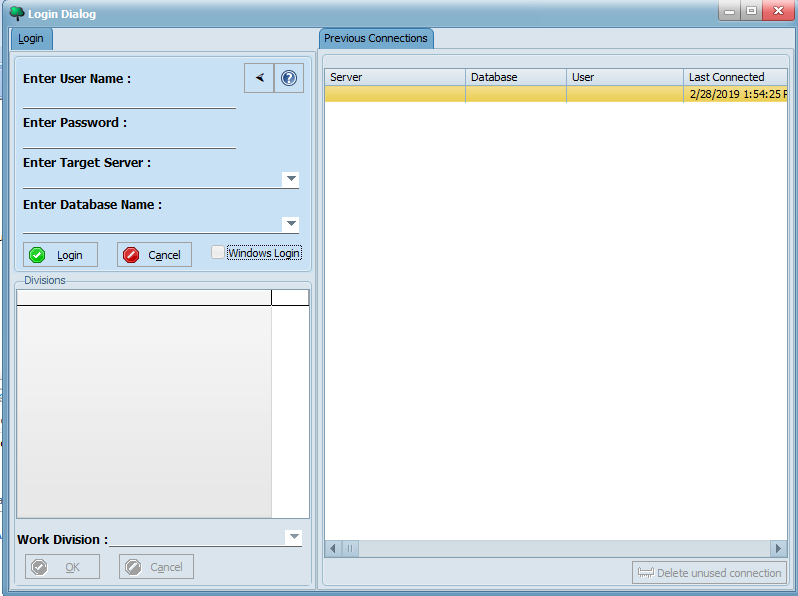
If your organization uses Windows authentication, ensure that the Windows Login option is checked (the Enter User Name and Enter Password field will then be disabled). Otherwise, enter the username and password provided by your LIMS administrator into the corresponding fields. Then, select or enter your LIMS server and database using the Enter Target Server and Enter Database fields. Now, click the Login button and select your division(s):
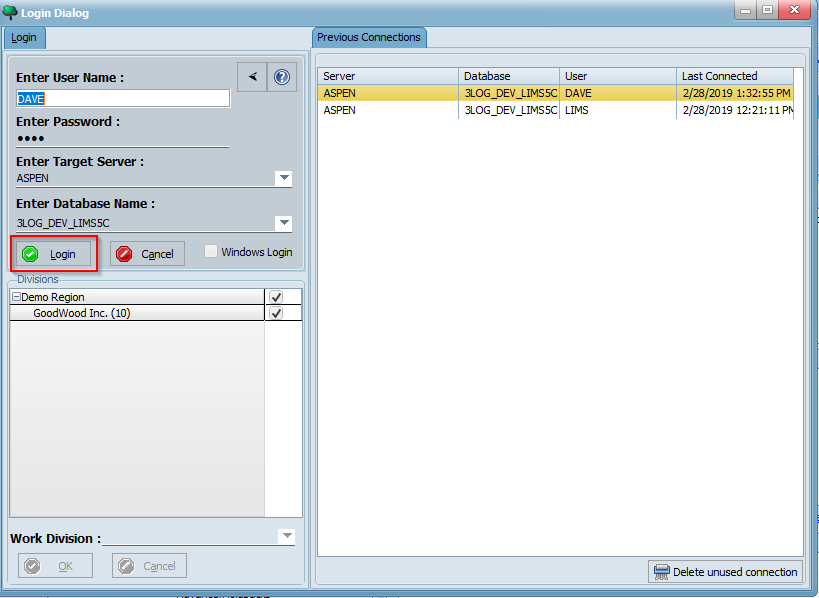
If you selected multiple divisions, you must then select a working division:
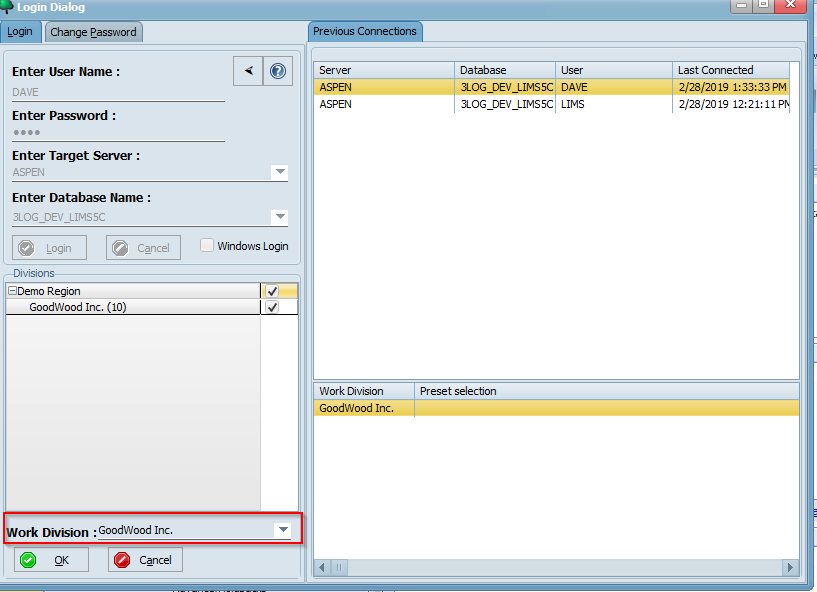
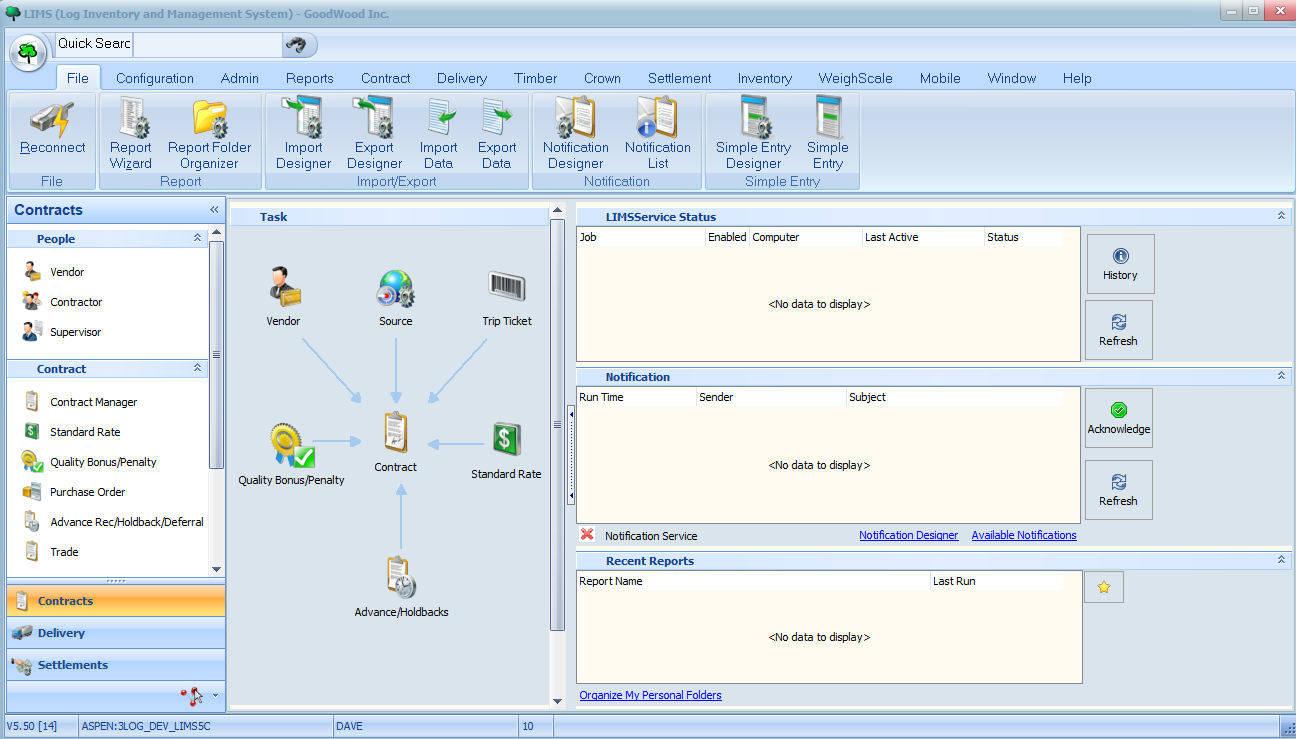
Lastly, click the OK button to log in. You should now see the LIMS home screen as follows:
You may additionally choose to save your login credentials and connection details so you don't have to re-enter them each time. To do so, click on the button on your login window, enter your login details as shown below, and click the Create Desktop Shortcut button:


A shortcut should now get created on your desktop and you will automatically be logged in with your saved credentials to the selected LIMS database each time you click on it. If you need to connect to multiple different LIMS databases (e.g. QA, Production, etc.) or divisions, you may choose to have different shortcuts for each one. It is highly recommended that you name your shortcuts accordingly (e.g. "LIMS Test", "LIMS Production", etc.) so you can be certain as to which database you are connected to.